You shipped your first paid feature, attached the in-app purchase to your build, submitted — and then cancelled the submission to add a demo video before resubmitting. Reasonable move. Except now the version is Rejected under Guideline 2.1, the rejection says the reviewer hit "Product not available" when they tapped Buy, and the "In-App Purchases and Subscriptions" section that used to sit on your version page is simply gone. There's no button to bring it back. Meanwhile, over on Monetization, the IAP sits under "In Review (1)" with a yellow "Waiting for Review" badge — attached to nothing.
That is the orphaned-IAP trap, and it is one of the genuinely confusing corners of App Store Connect. The good news: it's well understood, and there are four ways out. This chapter is the full diagnosis and the recovery, ranked by effort and by what each path costs you.
TL;DR
- Apple requires your first IAP to be reviewed bundled with an app build. You attach it on the version page, under "In-App Purchases and Subscriptions."
- That section only appears when at least one IAP is in "Ready to Submit."
- If you Cancel Submission on a submission that had the IAP attached (e.g. to add a demo video and resubmit), App Store Connect frequently orphans the IAP in "Waiting for Review" instead of returning it to "Ready to Submit." The section vanishes and there is no UI button to re-attach it.
- Resubmitting the build alone → reviewer taps Buy → StoreKit returns no product → "Product not available" → Guideline 2.1 rejection.
- Do NOT cancel again. Do NOT delete and recreate the IAP with the same product id — a deleted product id is burned forever and is hard-coded in your binary.
Recovery, in order of effort:
| # | Fix | Keeps product id? | New build? | Reliability |
|---|---|---|---|---|
| A | Re-arm the IAP to "Ready to Submit" by editing it | ✅ | ❌ | Sometimes (often locked once "In Review") |
| B | Remove the build to force the section back | ✅ | ❌ | Frequently fails |
| C | Contact Apple Developer Support to reset the orphan server-side | ✅ | ❌ | Reliable, but you wait 1–3 days |
| D | New IAP with a new product id + new build | ❌ (new id) | ✅ | Guaranteed, fully in your control |
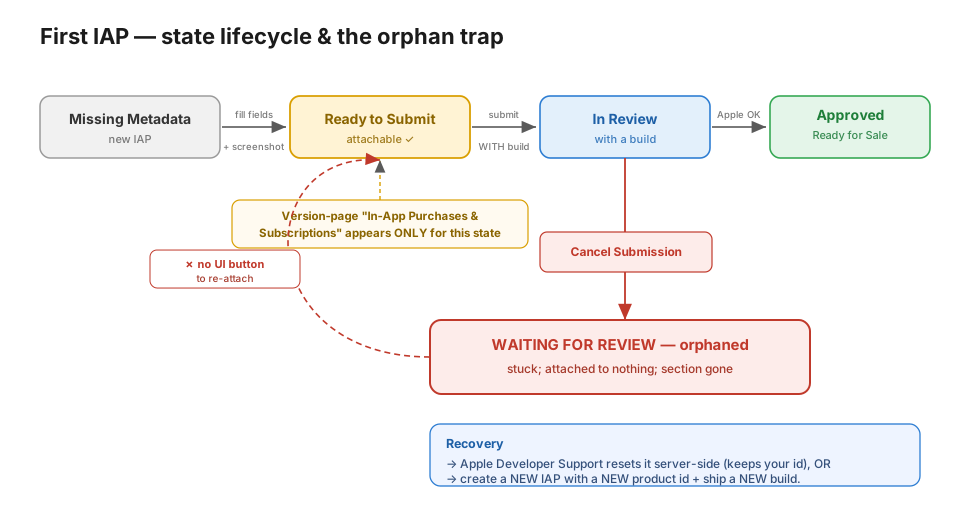
Figure 1 — The intended lifecycle (top), and the orphan trap that Cancel Submission drops you into (red branch).
Symptoms
You're in this exact situation if:
- The app version shows
1.0 Rejected, with the banner "2.1.0 Performance: App Completeness." - The rejection says an error appeared when the reviewer tried to purchase ("Product not available").
- On the version page, there is no "In-App Purchases and Subscriptions" section — not with a build attached, and not with the build removed.
- On Monetization → In-App Purchases, the product sits under "In Review (1)" with a yellow "Waiting for Review" badge — but it is attached to nothing.
Root cause
Apple states the rule directly — it's the blue notice that sits on your version page while you have an unreviewed first IAP:

Figure 2 — Apple's own notice on the version page: the first in-app purchase must be submitted with a new app version. Everything in this chapter follows from that one sentence.
A first / never-approved in-app purchase can only be reviewed together with a build, never standalone. The intended flow is:
Create IAP  →  complete metadata (name, price, localization, review screenshot)
            →  IAP status: "Ready to Submit"
            →  on the VERSION page, "In-App Purchases and Subscriptions" appears
            →  select the IAP  →  attach build  →  Submit  →  both reviewed together
When you Cancel Submission on a submission that had the IAP attached, Apple removes the IAP from review but does not reliably return it to "Ready to Submit" — it gets stuck (orphaned) in "Waiting for Review." Because the version-page section only renders for "Ready to Submit" IAPs, the section disappears and the IAP can no longer be selected. Apple staff have acknowledged this desync on the Developer Forums.
Diagnose it precisely (App Store Connect's internal API)
Before you touch anything, read the true state of the IAP. The App Store Connect web UI is backed by an internal iris API, and read-only GETs authenticate with your existing session cookies — so you can query it straight from your browser console while logged in. Open the JavaScript console on any App Store Connect page and paste these, replacing <YOUR_APP_ID> and <IAP_ID>:
// List IAPs for the app and their real states:
fetch('/iris/v1/apps/<YOUR_APP_ID>/inAppPurchasesV2?limit=200',
      {headers:{Accept:'application/json'}})
  .then(r => r.json())
  .then(j => console.log(j.data.map(d => ({
    id: d.id,
    productId: d.attributes.productId,
    state: d.attributes.state,            // e.g. WAITING_FOR_REVIEW
  }))));

// Confirm the IAP's review screenshot really is uploaded:
fetch('/iris/v2/inAppPurchases/<IAP_ID>/appStoreReviewScreenshot',
      {headers:{Accept:'application/json'}})
  .then(r => r.json()).then(j => console.log(j.data?.attributes)); // fileSize, fileName

// See what each review submission actually contains ("Items Submitted"):
fetch('/iris/v1/apps/<YOUR_APP_ID>/reviewSubmissions?limit=30&include=items',
      {headers:{Accept:'application/json'}})
  .then(r => r.json()).then(j => console.log(j));
If a rejected submission's "Items Submitted" shows only the app build (one item, no IAP), and the IAP's state is WAITING_FOR_REVIEW while attached to no submission — that is the orphan, confirmed.
Prefer a CLI to the browser console? An App Store Connect API key lets you script the same checks with
asc,fastlane, or raw JWT calls — see Appendix B. This is also exactly what SimpleAppShipper's MCP tools do under the hood when an agent reports IAP state for you.
The fixes
A. Re-arm the IAP to "Ready to Submit" (try first — free, no build)
- Monetization → In-App Purchases → open the product.
- Open the English (U.S.) localization, make a trivial edit to the Display Name or Description, Save, then revert it and Save again.
- Re-open the IAP and check the status.
- If it now reads "Ready to Submit" → go to the version page; the section should reappear → select the product → Submit (see Submitting correctly).
- If editing is locked (it's grouped under "In Review"), this won't work → go to C or D.
This is a community workaround, not an Apple-documented control, and it often fails once the product is locked in review. Try it because it's free; don't count on it.
B. Remove the build to force the section back (frequently fails)
Some developers report that detaching the build makes the picker reappear. Often it does not — with no build attached the section can still be gone, because the gating condition is the IAP being "Ready to Submit," not the build being present. Don't rely on it.
C. Contact Apple Developer Support (reliable, keeps everything)
This is the correct fix for the orphan. It keeps your product id and your existing build.
-
App Store Connect → Contact Us (bottom of the page) → App Store / App Review → request a phone callback (fastest turnaround).
-
Send a concise, first-person message:
App "YourApp" (Apple ID
<YOUR_APP_ID>), version 1.0, build N. My first in-app purchase —com.example.yourapp.pro(non-consumable, all metadata and the review screenshot complete) — is stuck in "Waiting for Review" and orphaned. It happened after I cancelled an earlier submission; cancelling de-linked the IAP and the "In-App Purchases and Subscriptions" section no longer appears on my version page, so I can't re-attach it. The build alone was then rejected under Guideline 2.1 ("Product not available"). Please move this same in-app purchase back to "Ready to Submit" and re-link it to version 1.0 / build N so it's reviewed with the build. Please don't have me recreate the product — its id is hard-coded in my shipped binary, so a new id would force a new build. -
When they move it back to "Ready to Submit," attach it on the version page and submit.
Turnaround is typically 1–3 days. If you can wait, this is the cleanest outcome — nothing in your project changes.
D. New IAP + new build (guaranteed, fully self-service)
If you don't want to wait on Apple, you can escape the orphan entirely on your own:
- Create a NEW in-app purchase with a NEW product id — do not reuse the burned one. Example:
com.example.yourapp.lifetime. Fill in everything: reference name, display name, description, Availability (all countries), price, review notes — and the review screenshot (see the warning below).

Figure 3 — A new IAP sits at "Missing Metadata" until every required field — including the review screenshot — is filled. It will not become attachable while it's in this state.
-
Update the app code to use the new product id, and bump the build number, then archive + upload a new build (e.g. 17 → 18):
- Your StoreKit configuration file → the product's
productID. - Your StoreKit service → the product-id constant your code requests.
CURRENT_PROJECT_VERSION→ bump it so the archive doesn't collide with the build you already uploaded. (MARKETING_VERSIONstays the same — you're still version 1.0.)
- Your StoreKit configuration file → the product's
-
On the version page, the new IAP (now "Ready to Submit") makes the "In-App Purchases and Subscriptions" section reappear. Click Select In-App Purchases or Subscriptions, check your new IAP, Done. The picker shows only IAPs in the "Ready to Submit" state — so the orphaned one (still in limbo) won't appear; only the new one. Then Add Build → select the new build.
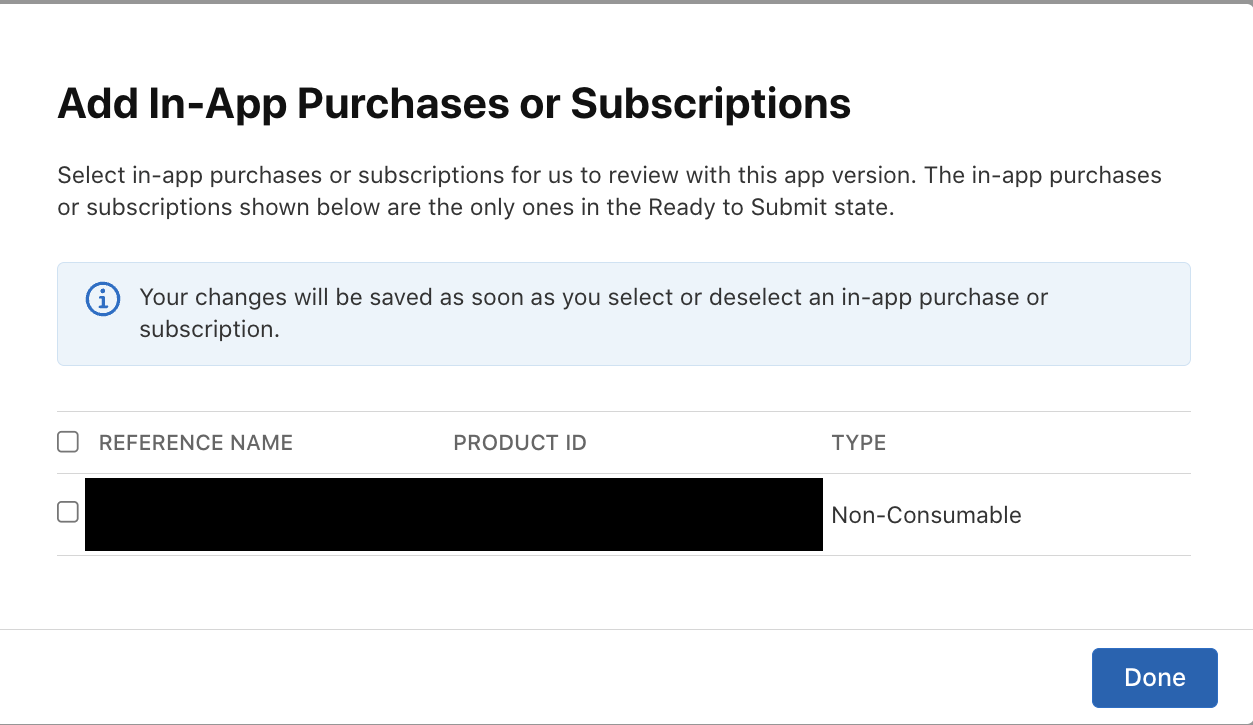
Figure 4 — The picker that confirms the gating rule: it lists only IAPs in the "Ready to Submit" state. Your orphaned one won't be here — which is exactly why the fresh IAP is the way out.
- Leave the old orphaned IAP alone. It never went live, so it harms nothing — and the old product id is permanently retired, which is fine for a never-shipped product (there are no existing purchasers who need to restore it).
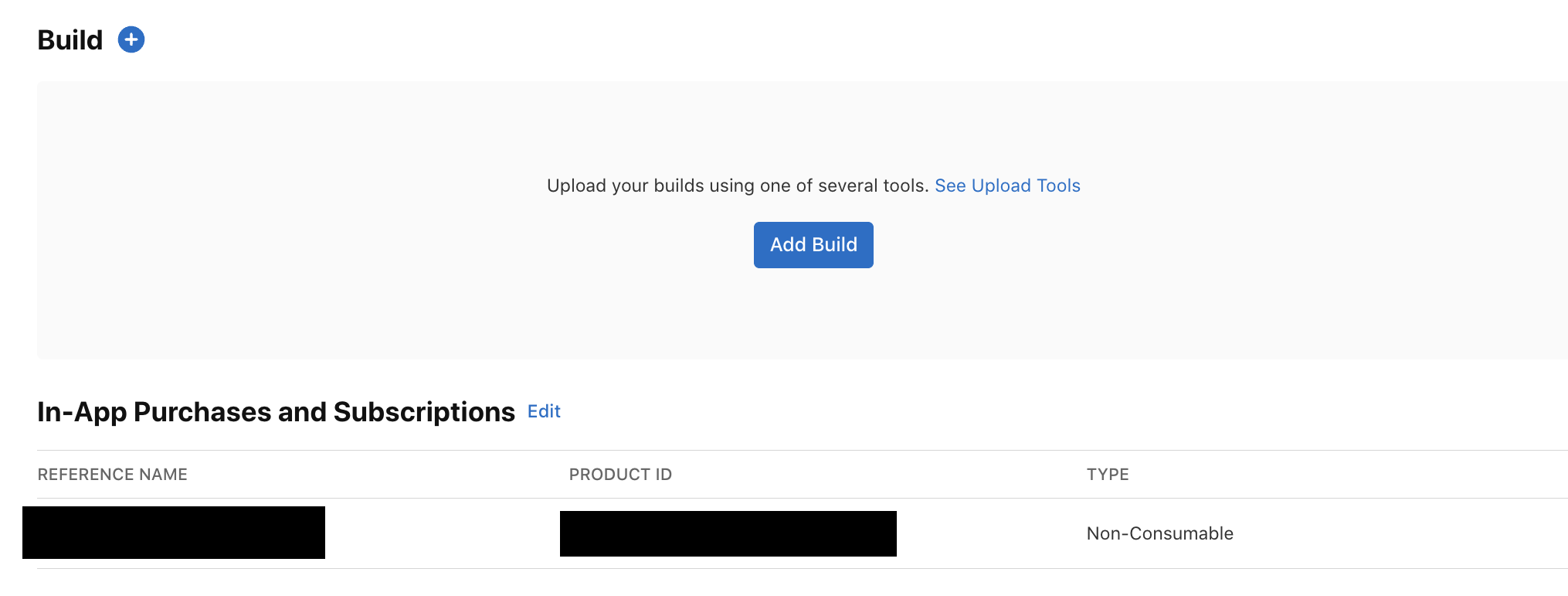
Figure 5 — The half-done trap, captured live: the IAP is linked (bottom), but the Build box is empty (top). Submit now and you repeat the rejection. Add the build first.
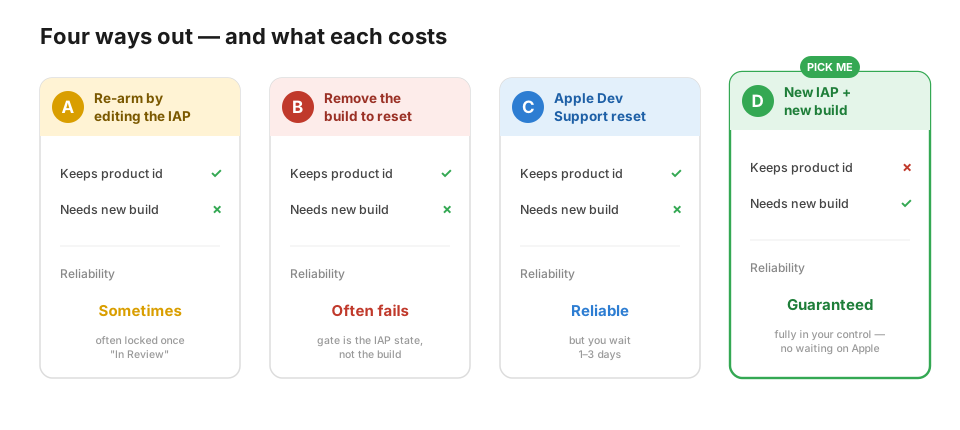
Figure 6 — The four ways out. A and B are free long-shots; C is the clean fix if you can wait; D is the guaranteed escape you fully control.
Submitting correctly (so it doesn't happen again)
- On the version page, confirm both appear before you submit: the build and the in-app purchase under "In-App Purchases and Subscriptions."
- Add a Notes for Reviewer line naming the product and how to reach the paywall, e.g. "Settings → Premium → tap the unlock button; the non-consumable
com.example.yourapp.lifetimeunlocks all premium features. Restore Purchase is on the same screen." - After resubmitting, open the submission summary and verify "Items Submitted" lists two items (build + IAP), not one.
- Required ASC role: Account Holder, Admin, or App Manager. A Developer-role login is read-only here.
A reply worth sending
When you Update Review after this kind of rejection, a one-paragraph reply in the Resolution Center heads off another round-trip:
Thank you for the review. I've fixed the in-app purchase issue. The IAP
com.example.yourapp.lifetimeis now included in this submission together with the build, so it loads during review. To test: open the app → Settings → Premium → tap the unlock button; the purchase sheet now appears and completes, and Restore Purchase is on the same screen. I verified the full flow in the sandbox. Thank you!
Keep it to "the purchase works now, here's how to test it." No need to mention the orphan or the product-id change.
Do NOT do these
- ❌ Cancel Submission / "remove this version from review." This is what orphaned the IAP in the first place. (Online advice that says "cancel to remove from review" applies only to an IAP that is still inside an in-flight submission — not an already-rejected one.)
- ❌ Delete or recreate the IAP with the same product id. A deleted product id is burned forever and is hard-coded in your binary.
- ❌ "Resubmit to App Review" on the old rejected submission before the IAP is actually attached. That just repeats the build-alone rejection.
- ❌ Trust "approved IAPs auto-carry-forward, the missing section is normal." That does not apply to a first / never-approved IAP, and has produced 2.1(a) "no IAP attached" rejections. Always verify the IAP is explicitly attached.
"Continue the review" vs "new review" — the answer
You cannot resume a rejected review — once rejected, that review is closed. Any resubmission (fixing the old IAP or a new IAP/build) creates a new review submission that re-enters the queue (~24–48 h). But it stays app version 1.0 — you do not create a new app version and you do not lose your screenshots, description, or metadata. So: new review cycle, same version. That's normal and unavoidable after any rejection — it is not "starting over."
Appendix A — Uploading from a restrictive network (proxy / VPN / GFW)
If you're behind a VPN, a local HTTP proxy (Shadowrocket, Clash, Proxifier, …), or a national firewall, the build upload can fail in a way that looks like a signing or key problem but isn't. What's actually happening:
| Apple endpoint | What uses it | Often fails because |
|---|---|---|
idmsa.apple.com | Apple-ID sign-in (Xcode "Distribute App", Transporter login) | Frequently unreachable / TLS-reset on restrictive networks |
api.appstoreconnect.apple.com | App Store Connect API (API-key uploads, asc) | Usually reachable directly; a proxy doing TLS interception breaks it with CONNECT tunnel failed, 503 |
developer.apple.com | portal, cert/profile creation | Usually reachable directly |
Two failure signatures, two meanings:
- Through the proxy:
curl: (56) CONNECT tunnel failed, response 503→ your proxy node is choking on Apple's domains. Switch nodes, or route Apple domains direct. - Direct (proxy off):
SSL_ERROR_SYSCALL/ERR_CONNECTION_CLOSEDtoidmsa.apple.com→ the firewall is resetting Apple-ID auth specifically.
The robust fix: upload with an App Store Connect API key, which never touches idmsa. The API-key path authenticates to api.appstoreconnect.apple.com directly:
# After exporting a signed .ipa:
xcrun altool --upload-app -f YourApp.ipa -t ios \
  --apiKey <KEY_ID> --apiIssuer <ISSUER_ID>
# (the .p8 must live in ~/.appstoreconnect/private_keys/AuthKey_<KEY_ID>.p8)
Apple's Transporter app accepts the same API key. Both avoid the Apple-ID sign-in that the firewall blocks.
Diagnose reachability fast:
curl -sS -m 15 -o /dev/null -w "%{http_code}\n" https://api.appstoreconnect.apple.com/v1/apps— a401means the connection is fine; a TLS error /000means it's blocked. Add--noproxy '*'to test the direct path.
"No iOS Distribution certificate found"
Uploading still needs a distribution certificate to export the .ipa. With Automatically manage signing on, Xcode creates it — but only if it can reach Apple. If the network blocks that, either fix the connection first, or create the certificate via the App Store Connect API (it uses api.appstoreconnect.apple.com, not idmsa):
asc certificates list                  # see what exists
asc signing fetch --bundle-id com.example.yourapp --profile-type IOS_APP_STORE
Appendix B — Set up the App Store Connect API (asc / scripts)
A read/write API key lets you verify submissions, read IAP states, and upload — all without the browser, and without idmsa.
- App Store Connect → Users and Access → Integrations → App Store Connect API → generate a key. You get a Key ID, an Issuer ID, and a one-time
.p8download. - Store the
.p8somewhere stable and locked down:mkdir -p ~/.appstoreconnect/private_keys && chmod 700 ~/.appstoreconnect ~/.appstoreconnect/private_keys mv ~/Downloads/AuthKey_<KEY_ID>.p8 ~/.appstoreconnect/private_keys/ chmod 600 ~/.appstoreconnect/private_keys/AuthKey_<KEY_ID>.p8 - Register it (this example uses the
ascCLI, which stores it in the macOS keychain):asc auth login --name "YourApp" --key-id <KEY_ID> --issuer-id <ISSUER_ID> \ --private-key ~/.appstoreconnect/private_keys/AuthKey_<KEY_ID>.p8 asc apps list # verify it works
Mini-exercise: confirm your own state before you act
Don't guess which situation you're in — read it. Log into App Store Connect, open the browser console, run the three iris snippets from Diagnose it precisely, and answer in writing:
- What
stateis your IAP in?WAITING_FOR_REVIEWwhile attached to no submission = orphaned.READY_TO_SUBMIT= you can just re-attach it on the version page. - Is the review screenshot actually uploaded? If
appStoreReviewScreenshotreturns nofileSize, that alone is why the IAP won't reach "Ready to Submit" — fix that first. - How many items did the rejected submission contain? One (build only) confirms the build-alone rejection; the IAP was never reviewed.
If the answers say "orphaned, screenshot present, build-only submission," you're squarely in this chapter — pick path C or D.
Key Points
- A first IAP is reviewed with a build, never alone. The "In-App Purchases and Subscriptions" section on the version page only renders when an IAP is in "Ready to Submit" — that state is the gate for everything.
- Cancel Submission is the trap. Cancelling a submission that had the IAP attached can strand it in "Waiting for Review" with no UI to re-attach it, and the build-alone resubmission then fails Guideline 2.1 "Product not available."
- Read the truth from
irisbefore acting. The browser console + your session cookies expose the real IAPstate, the review-screenshot upload, and each submission's actual items — so you fix the cause, not the symptom. - Four ways out, ranked. Re-arm (free, flaky) → remove build (flaky) → Apple Support (clean, keeps everything, 1–3 days) → new IAP + new build (guaranteed, fully yours, costs the old product id).
- Never reuse a burned product id, never cancel again. A deleted/recreated id is gone forever and it's compiled into your binary; cancelling is what caused this.
- Same version, new review cycle. After a rejection you click Update Review on version 1.0 — you don't start over, lose metadata, or create a new version.
App Store Connect is genuinely confusing here, and the orphaned-IAP state is a real platform desync, not a mistake on your end — if it happened to you, you didn't do anything wrong. Next in the series: "3.0.0 Business: Preamble" Isn't a Real Rejection — the review hold that looks like a verdict but is only a question, and the App Store Connect button that resubmits your app the moment you touch it.
Read next

Ultimate iOS Bootcamp: Master Swift & SwiftUI App THE HARD WAY
Ship your apps faster
When you're ready to publish your Swift app to the App Store, Simple App Shipper handles metadata, screenshots, TestFlight, and submissions — all in one place.
Try Simple App Shipper