Where did the note go?
You typed it. You saw it on screen. You killed the app. On the next launch three stores still had "Harbor build 418" and one showed a dash. That dash is not a bug in the demo — it is the control.
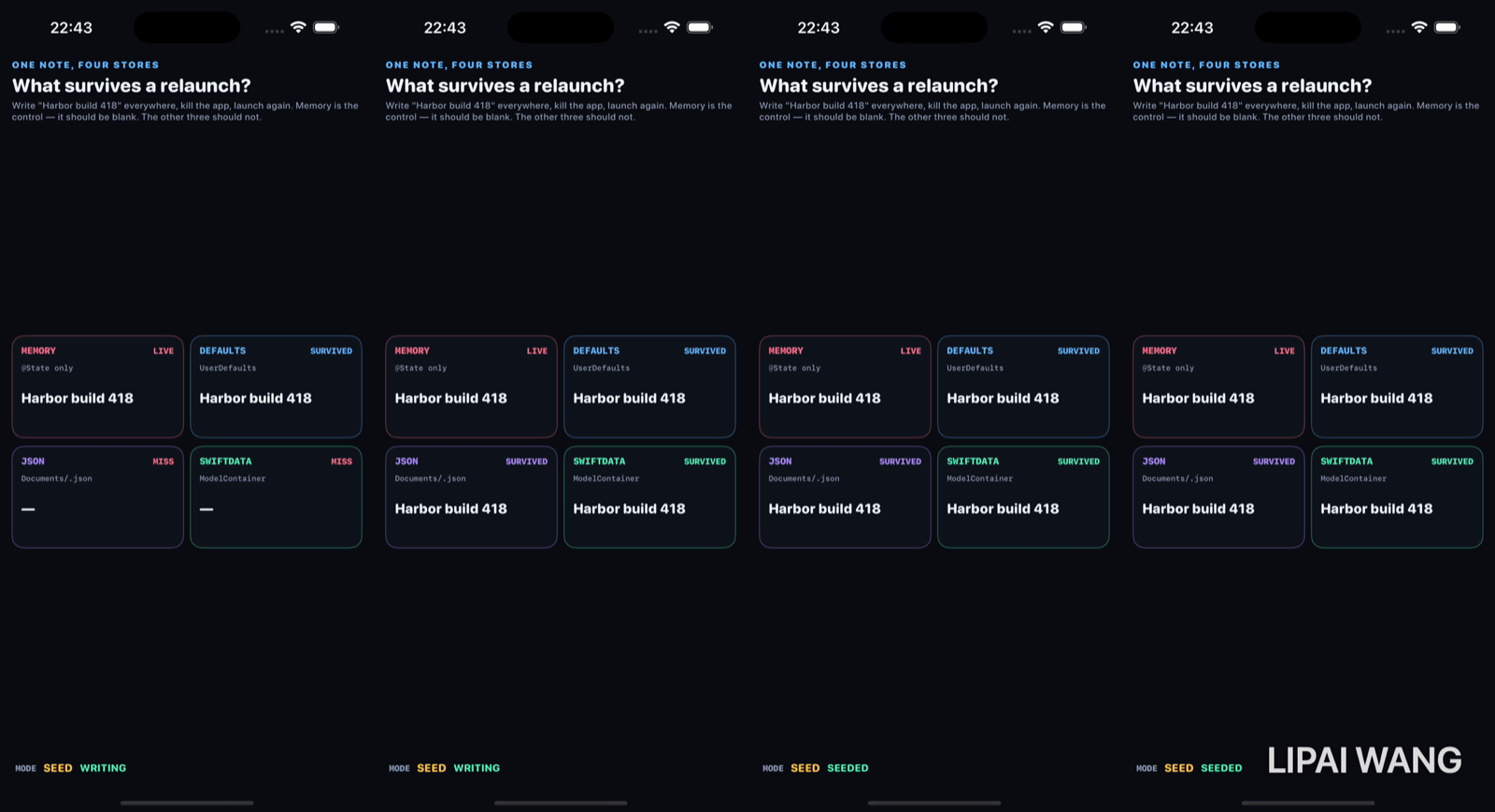
Four stores, one string
static let seededValue = "Harbor build 418"| Store | Mechanism |
|---|---|
| MEMORY | @State only |
| DEFAULTS | UserDefaults.standard |
| JSON | Documents/lab-shipment-note.json via Codable |
| SWIFTDATA | @Model + on-disk ModelContainer |
Capture does this for real: one process with -mode seed, then a new process with -mode reload that only reads. No fake "clear memory" button.
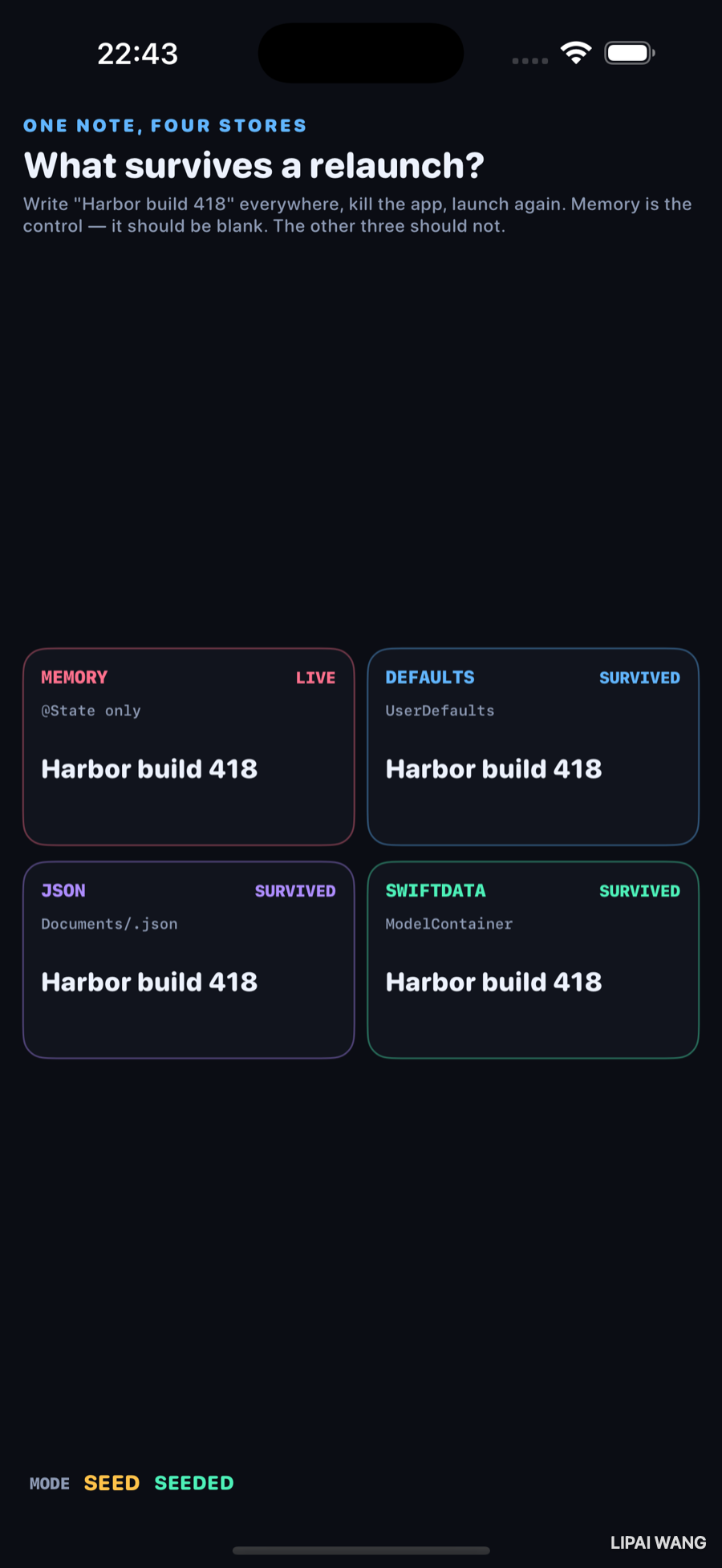
Right after the write, everything agrees. MEMORY says LIVE. The durable three already say SURVIVED because the read-back came from disk, not from hope.
After kill
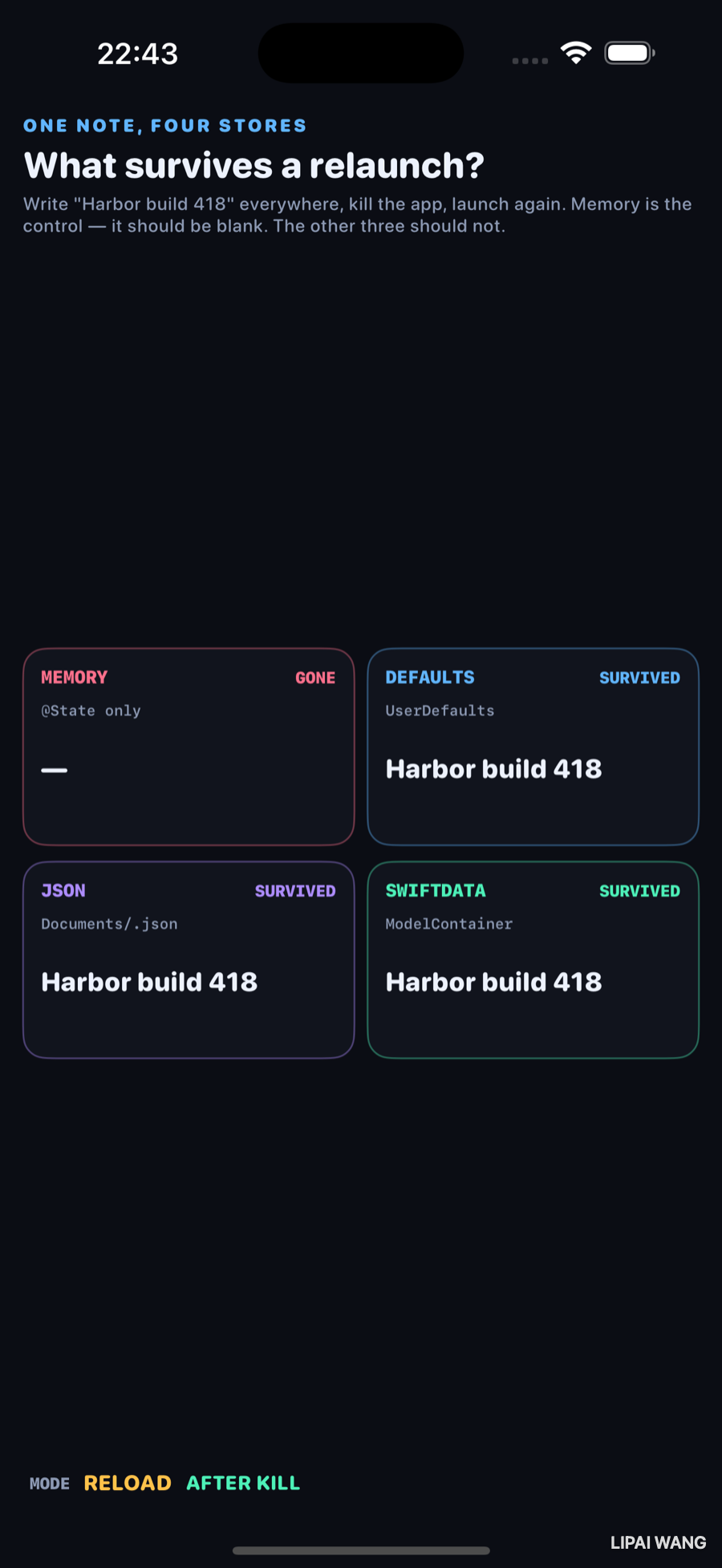
| Store | After relaunch | Label |
|---|---|---|
| MEMORY | — | GONE |
| DEFAULTS | Harbor build 418 | SURVIVED |
| JSON | Harbor build 418 | SURVIVED |
| SWIFTDATA | Harbor build 418 | SURVIVED |
Footer on that still: MODE RELOAD · AFTER KILL.
@State is not a databaseIt is a value tied to a view identity in the current process. Kill the process and there is nothing to restore. Shipping an editor that only mutates @State is how notes vanish when the user switches apps under memory pressure — the failure looks like "the app forgot," not like a crash.
How each survivor is written
UserDefaults — one key, one string:
UserDefaults.standard.set(text, forKey: Self.noteKey)
// …
defaultsValue = UserDefaults.standard.string(forKey: Self.noteKey) ?? "—"
Fine for small preferences. Wrong for large documents, and invisible when you forget the key name.
JSON file — the Saving Files pattern from SwiftUI Apprentice, narrowed to one note:
struct NoteFile: Codable { var text: String }

try JSONEncoder().encode(NoteFile(text: text))
  .write(to: jsonURL, options: .atomic)
Atomic write matters: a half-written file after a kill is how "JSON survived" becomes "JSON corrupted."
The first capture wrote all four stores in one frame and the motion file came back 0.06 s long — unusable for social export. The seed path now pauses between cards so the filmstrip has something to show. Same data, slower ceremony.
SwiftData — a one-field @Model in a file-backed container under Application Support:
@Model
final class PersistedNote {
  var text: String
  init(text: String) { self.text = text }
}
Same string came back. The point of this bench is not schema design — it is that choosing any durable store beats pretending @State would remember.
On the seeded still, MEMORY looks identical to the winners. That is the ch9 / ch10 / ch12 trap again: happy-path screenshots hide the lifetime bug. The money shot is always the second process.
Mini-exercise
In reloadAll(), restore memory from UserDefaults "to be helpful." Re-run -mode reload. MEMORY will falsely say LIVE. You just destroyed the control — put the blanking back.
Challenges
- Delete the JSON file in Finder between seed and reload; photograph JSON MISS while Defaults and SwiftData still survive.
- Switch the SwiftData
ModelConfigurationtoisStoredInMemoryOnly: trueand show it joins MEMORY in the GONE column after kill. - Write a second field (
updatedAt) only to SwiftData and show the JSON card cannot display it without a format bump — motivate migrations (next queue item). - Use
ScenePhase.backgroundto seed Defaults automatically and prove a background write still survives kill. - XCUITest: launch seed, terminate via
XCUIApplication().terminate(), relaunch reload, assert MEMORY accessibility value is the dash and SWIFTDATA contains418.
Key Points
@Statedies with the process — relaunch still shows — / GONE.- UserDefaults, JSON in Documents, and SwiftData all returned Harbor build 418 after a real kill.
- Seed and reload are separate process launches (
-mode seedthen-mode reload), not an in-app reset. - Atomic JSON writes avoid half-file corruption across kills.
- SwiftData here is a single
@Modelstring — enough to prove durability, not an app architecture. - The seeded still makes MEMORY look fine; only AFTER KILL exposes the control.
- Pick storage by lifetime need: preferences → Defaults; documents → files/SwiftData; screen chrome →
@State. - Next failure mode is schema change — surviving bytes you can no longer read.
Next up: migrations — load a store written by an older schema; one build migrates, one crashes; show the actual error text.
Read next
Ship your apps faster
When you're ready to publish your Swift app to the App Store, Simple App Shipper handles metadata, screenshots, TestFlight, and submissions — all in one place.
Try Simple App Shipper